Merging & Renumbering CounterPoint Items
Related: How to Delete an Item from CounterPoint
- Merging Example: Items
ABC1,EFG2, andQRS3are all merged intoXYZ9 - Renumbering Example: Item
ABC1becomesXYZ9
Failure to follow the steps precisely will result in duplicate listings in the CDN, feeds, and eCommerce website (aka "Zombies").
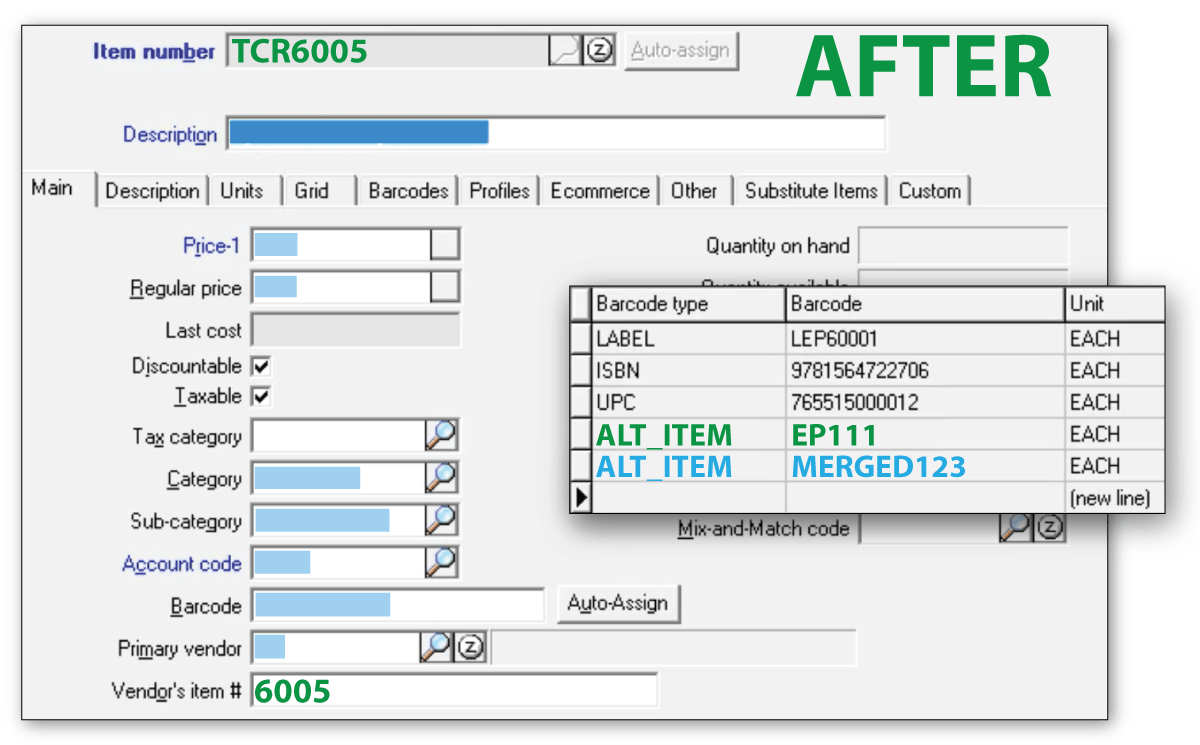
You must add every old or merged ITEM_NO to the surviving item's barcode table as an ALT_ITEM entry. This is how the CDN matches up the old and new item numbers.
Follow the Flow Chart

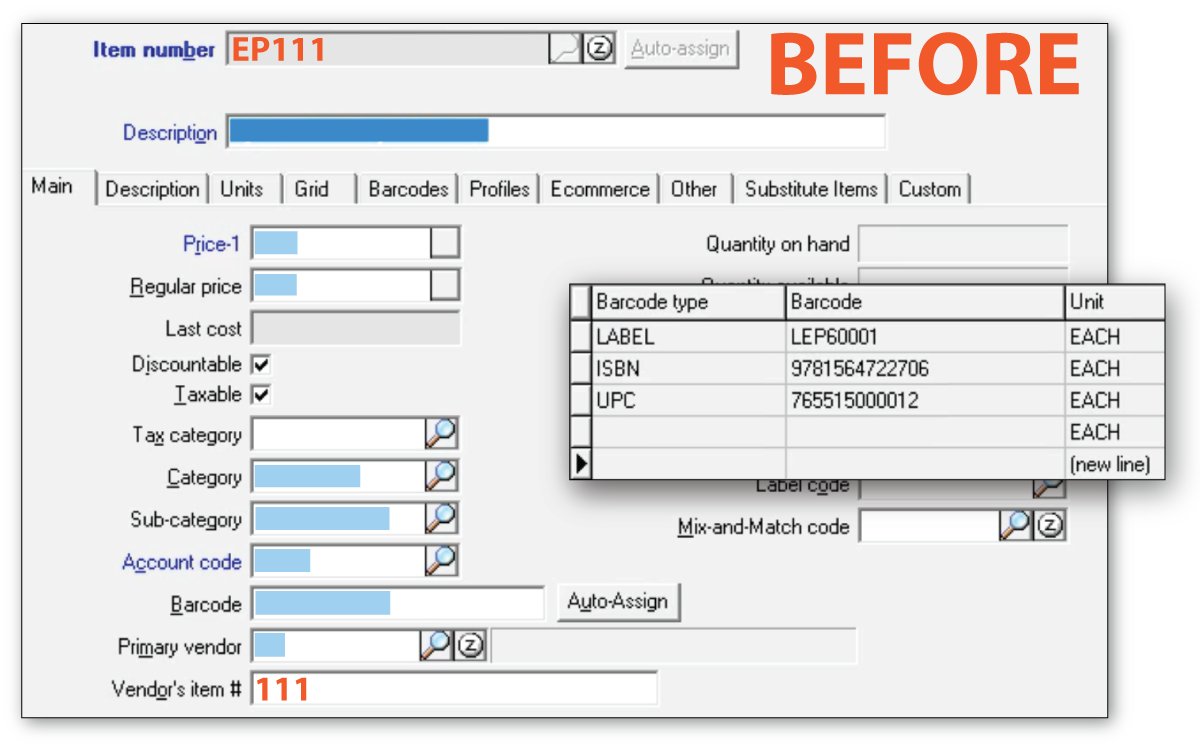
Before & After Comparison
Compare the item before and after merging/renumbering:
Updating the IM_BARCOD Table In Bulk
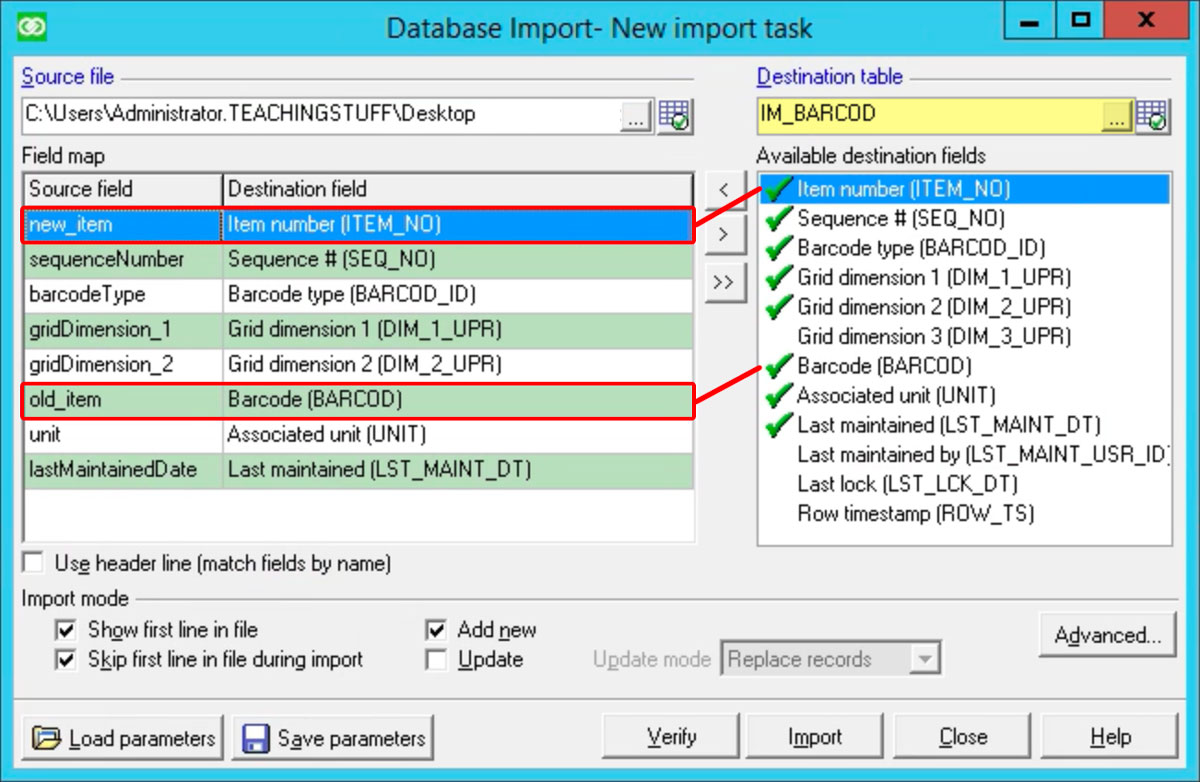
Quickly add multiple old ITEM_NO values as ALT_ITEM entries in the barcode table using Data Interchange: Import
- Change (renumber) the item's number (
ITEM_NO) in CounterPoint (Do this before Data Interchange. Otherwise, Data Interchange will report a conflict.) - Download the template CSV file
- Enter the new item number and the old item number in the appropriate columns, adding as many lines as needed
- Import the CSV file created in step 2 by using Data Interchange to add the old item number to each item's barcodes table as an
ALT_ITEMentry. - If you receive an error during import regarding the sequence number, change the sequence number in the CSV file (to
2001, or2002...) or add the entry manually from the item screen.
Map fields in Data Interchange as: